
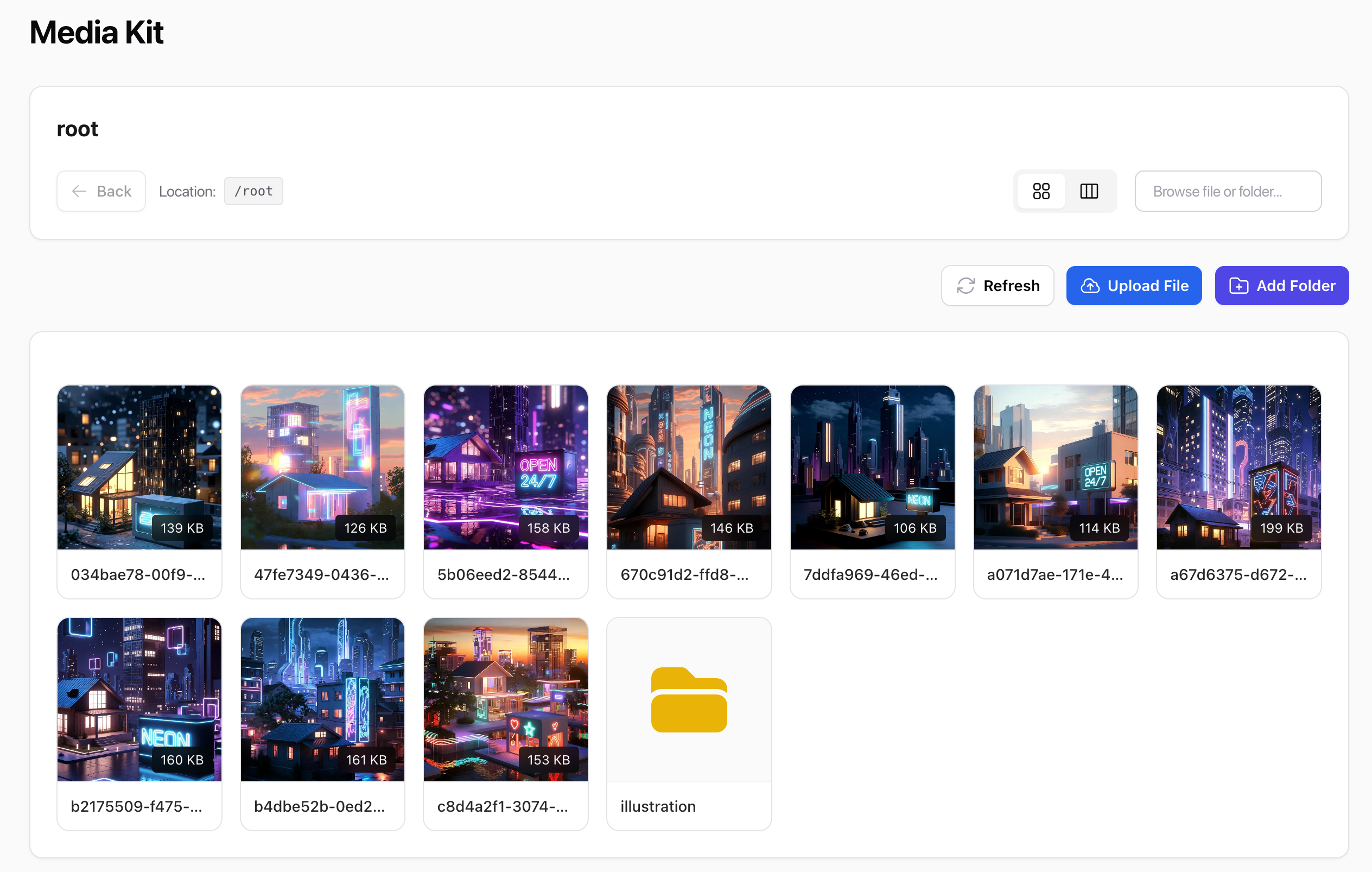
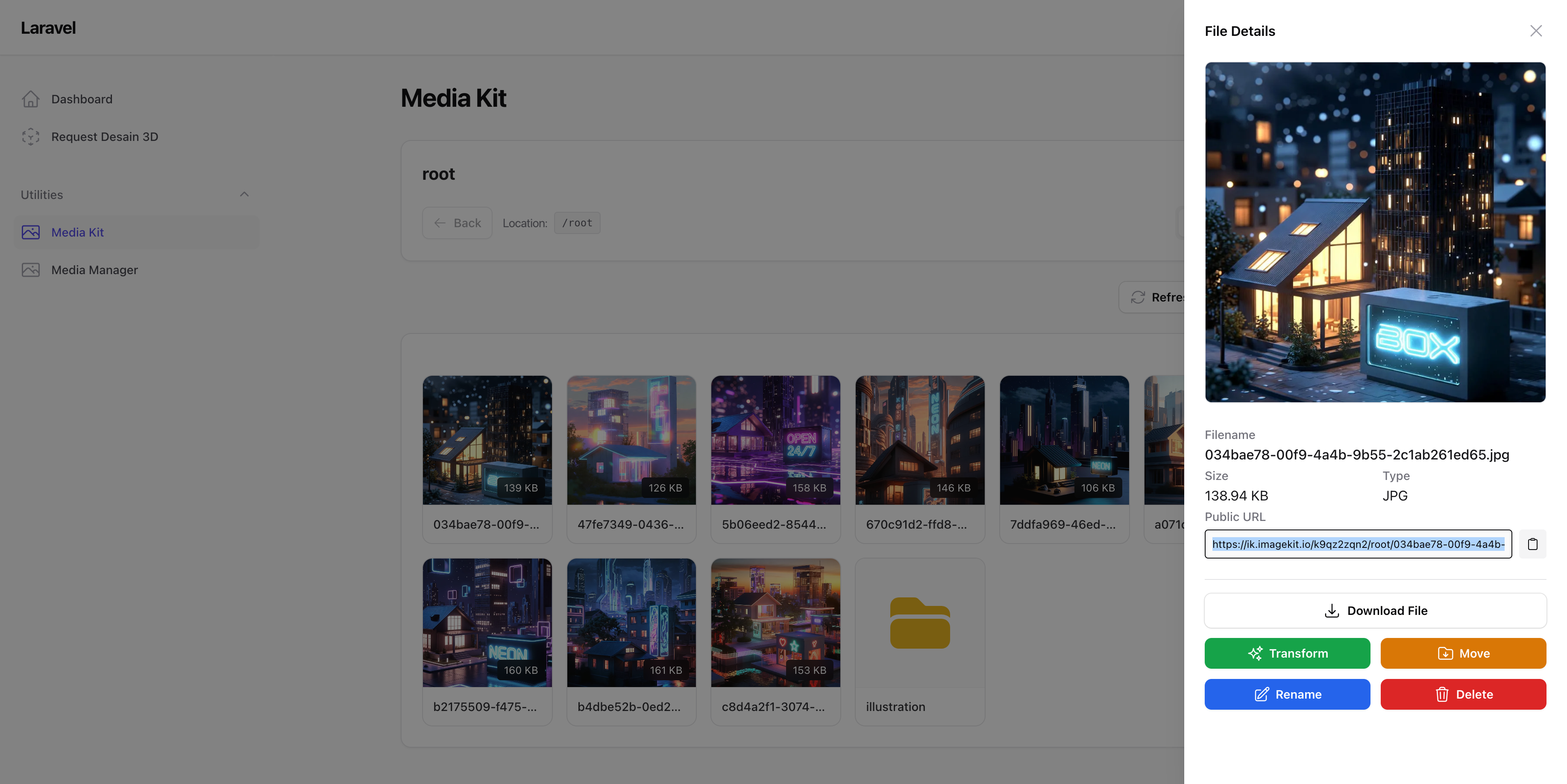
MediaKit is a robust Filament plugin that allows you to manage your ImageKit.io assets directly from your Laravel admin dashboard. It features a seamless file manager interface, advanced search capabilities, and on-the-fly image transformations.
✨ Features
- 📂 File Manager Interface: Browse folders and files with a native-like experience (Grid & Table views).
- 🔍 Advanced Search: Global recursive search scoped to your project folder.
- 🚀 Full Actions Suite: Upload, Create Folder, Rename, Move, and Delete (Single & Bulk actions).
- 🖼️ Image Transformation: Generate optimized URLs with effects (Resize, Crop, Blur, Grayscale, Remove Background).
- ⚡ High Performance: Built on top of the
Sushiarray driver with smart caching for folder structures. - 🌐 Localization: Out-of-the-box support for English (
en) and Indonesian (id).
🛠️ Requirements
- PHP
^8.1 - Laravel
^10.0or^11.0 - Filament
^3.0 - An active ImageKit.io account, see Developer docs.
📥 Installation
Since this package is paid, you need to configure your application to install it.
1. Update composer.json
Open the composer.json file in your root Laravel application and add the local repository configuration:
"repositories": [
	{
		"type": "composer",
		"url": "https://mediakit.creator.ianstudios.id"
	}
]
2. Authentication
To install the package, you must first configure your project to authenticate with our private repository that we send to you. You have do this by adding your credentials to Composer.
Run the following command in your terminal:
composer config http-basic.mediakit.creator.ianstudios.id license YOUR_LICENSE_KEY
3. Require the Package
Now run the following command in your terminal to install the package:
composer require ianstudios/mediakit
🎨 Filament Custom Theme (Required for MediaKit Styling)
If you are using a custom Filament theme (e.g., via php artisan filament:assets), add the MediaKit CSS import at the very top of your theme file:
/* resources/css/filament/admin/theme.css (or your theme file name) */

@import '../../../../vendor/ianstudios/mediakit/resources/dist/css/index.css';

/* The rest of your theme configuration below */
Ensure the @import line is placed at the very top so that MediaKit styles are not overridden by other CSS rules.
After that, recompile your Filament assets:
php artisan filament:assets
🎨 Tailwind CSS Configuration (To Avoid Display Errors)
To ensure Filament and MediaKit components render correctly without styling errors, install the following Tailwind plugins:
npm install -D @tailwindcss/forms
npm install -D @tailwindcss/typography
Then, update your tailwind.config.js file to include content from the MediaKit vendor:
import preset from './vendor/filament/support/tailwind.config.preset'

/** @type {import('tailwindcss').Config} */
export default {
    presets: [preset],

    content: [
        './vendor/laravel/framework/src/Illuminate/Pagination/resources/views/*.blade.php',
        './storage/framework/views/*.php',
        './resources/views/**/*.blade.php',
        './resources/**/*.js',
        './resources/**/*.vue',
        './app/Filament/**/*.php',
        './resources/views/filament/**/*.blade.php',
        './vendor/filament/**/*.blade.php',
        './vendor/ianstudios/mediakit/**/*.blade.php', // Add this to support MediaKit views
    ],

    plugins: [
        require('@tailwindcss/forms'),
        require('@tailwindcss/typography'),
    ],
}
Afterward, run npm run build or npm run dev to compile your Tailwind assets.
⚙️ Configuration
1. Environment Variables
Add your ImageKit credentials to your .env file. Note: It is important to define both the List URL and Upload URL endpoints correctly.
IMAGEKIT_PUBLIC_KEY="your_public_key_here"
IMAGEKIT_PRIVATE_KEY="your_private_key_here"

# The root folder for this specific project (scoping)
IMAGEKIT_FOLDER="my-project-root"

# ImageKit API Endpoints
IMAGEKIT_API_LIST_URL="https://api.imagekit.io/v1"
IMAGEKIT_API_UPLOAD_URL="https://upload.imagekit.io/api/v1"
2. Publish Configuration (Optional)
If you wish to customize default settings (such as the temporary upload disk or view defaults), publish the configuration file:
php artisan vendor:publish --tag=mediakit-config
This will create config/mediakit.php.
🔌 Filament Integration
To display the Media Kit page in your admin panel sidebar, you must register it in your AdminPanelProvider.
Open app/Providers/Filament/AdminPanelProvider.php:
public function panel(Panel $panel): Panel
{
    return $panel
        // ... other configuration
        ->plugins([
            \Ianstudios\Mediakit\Plugins\MediaKitPlugin::make() // add this
        ]);
}
🌍 Localization (Language)
This package automatically adapts to your Laravel application's locale (App::getLocale()). It currently supports:
- English (en) - Default
- Indonesian (id)
Publishing Translations
If you want to modify the text (e.g., change "Upload File" to "Add Media") or add a new language, you must publish the translation files. Run the following command:
php artisan vendor:publish --tag=mediakit-translations
The files will be copied to:
lang/vendor/mediakit/en/messages.phplang/vendor/mediakit/id/messages.php
Adding a New Language
To add a new language (e.g., Spanish es), simply create a new folder lang/vendor/mediakit/es/ and copy the messages.php file from the English folder, then translate the values.
🎨 Customizing Views
If you need to completely overhaul the design (e.g., change the Grid layout or the Sidebar details), you can publish the Blade views. Run the following command:
php artisan vendor:publish --tag=mediakit-views
The views will be published to resources/views/vendor/mediakit/.
🐛 Troubleshooting
- Folders are not showing or "Unauthorized" error
- Check your .env file. Ensure
IMAGEKIT_PRIVATE_KEYis correct. - Ensure
IMAGEKIT_API_LIST_URLis pointing tohttps://api.imagekit.io/v1.
- "Move" or "Copy" dropdown is outdated
- Click the Refresh button (circular arrow icon) in the Media Kit toolbar. This forces the application to clear the folder structure cache and fetch the latest tree from ImageKit.
- Search returns empty results in subfolders
- Ensure
IMAGEKIT_FOLDERin your .env matches the actual root folder name in your ImageKit bucket. The search function is scoped to this specific folder.
- MediaKit styling is missing or appears broken
- Ensure you have added the
@importCSS in your custom Filament theme (see the Filament Custom Theme section above). - Recompile assets with
php artisan filament:assets.
Commercial License Agreement
Copyright (c) 2026 Ianstudios. All Rights Reserved.
This software is "Proprietary" and is NOT Open Source.
-
Grant of License: Usage of this software is granted only to those who have purchased a valid license from Ianstudios (https://creator.ianstudios.id).
-
Restriction: You may NOT redistribute, resell, share, or publish this source code, in whole or in part, to any public repository (GitHub, GitLab, etc.) or file-sharing service.
-
Usage:
- "Personal License" allows usage in 1 (one) project/domain.
- "Pro License" allows usage in unlimited projects owned by the license holder.